0

NAV - Quit - Break - Skip - Exit

Posted by Nantharupan on 7:01 AM in , , ,
When i was searching for the difference of these function, i found the answer from the following blog, i just copied that again for the quick reference. 
http://www.navisioncanbefun.com/2010/quit-break-skip-exit/

1. Quit 
Quit can only be used in Report, Dataport or XMLport. (Like Currreport.quit). It quits (come out from) the report or dataport or XMLPORT. If some processing of data happened before the quit statement, all of those data manipulations will be reversed (rolled back).
2. Break
Break can be used in 2 places –
a. in any loop (repeat..until) – This statement will break the loop and come out of the loop without further processing. All the data manipulation before this statement will remain intact.
b. In a report or dataport or XMLport. This statement will take you out from any trigger (like on prereport, Onpresection etc)
3. SKIP 
SKIP is only used in Report / Dataport / XMLPORT. This statement skips the iteration of a dataitem.
4. EXIT
EXIT normally used in functions / triggers to return a value. (say a function returns a numeric value –
Myfunction(integer A, Integer B) Integer—
EXIT(A+B);

0

VALIDATE() - NAV

Posted by Nantharupan on 5:21 AM
VALIDATE() function is call the triggers function for the field. 

When we add, delete or modify a record or filed of a record, we tend to do some validation for the fileds. This validations are put in the On validate trigger of the field. However if you just change the field without calling the VALIDATE function, this trigger will not be called. So if we want to call the VALIDATE function before changing the field, its better to call the VALIDATE function.

We can use the following syntax to validate the GeneralLedgerEntry record field "G/L AccountNo". 

GeneralLedgerEntry."G/L AccountNo" := '100';
GeneralLedgerEntry.VALIDATE("G/L AccountNo"); 

The above two lines can be written into a single line as follows. 


GeneralLedgerEntry.VALIDATE("G/L AccountNo", '100');


0

Regec - Find the Image src,width, height in HTML

Posted by Nantharupan on 3:26 AM
            string regexImgSrc = @"<img[^>]*?src\s*=\s*[""']?([^'"" >]+?)[ '""][^>]*?>";
            string widthpattern = @"(?<=WIDTH:?)[0-9A-Za-z\s]+(?=;)";
            string heightpattern = @"(?<=HEIGHT:?)[0-9A-Za-z\s]+(?=;)";


0

GET - NAV

Posted by Nantharupan on 10:06 PM in , , ,
Its just a tip.

When ever we wanted to filter the record, we tend to use SETRANGE() or SETFILTER() and FINDFIRST()... However, we should keep in mind that, if we are filtering based on the Primary Key, then we can use GET(), it does all the work, we do by writing some lines of code with one life of code.

CustomerRec.RESET();
CustomerRec.SETRANGE("No.", 1291);
CustomerRec.FINDFIRT();


This can be done by using following code,

CustomerRec.GER(1291);

Hope this tip helped some one.!

0

Difference between SETRANGE and SETFILTER

Posted by Nantharupan on 12:15 PM in , , ,
We often face situation to filter record in NAV. There are two function can be used most of the time interchangeable for simple filters. However there might be performance consequences. 

  • SETFILTER()
       It can be assign a filter on a record to a filed we specify. It often used to do the complex filtering. 

  • SETRANGE()
       It is a simple filter, where single value or single range can be set on a field. 

SETRANGE give us a quick way to set up the Filer. 

CustomerRec.SETRANGE("No.", 100, 200); 

Above line simple filter the customer record with customer number from 100 to 200. 

The same functionality can be achieved by using SETFILTER() as follows

CustomerRec.SETFILTER("No.", '>=100&<=200');

We can see the difference. When using the SETFILTER() we should construct the filter statement. However we can not achieve complex filters using SETRANGE().

It is an incomplete post.....


0

NAV FIND() VS FINDFIRST(), VS FINDLAST()

Posted by Nantharupan on 1:26 PM in , , ,
FIND() is used with parameters. Based on the parameters passed in FIND()  different results set. 

  • FIND('-') : To search the first record in the table
  • FIND('+') : TO search the last record in the table.

However FIND is an old function. Instead of FIND('-') FINDFIRST() function can be used, FINDLAST() function can be used instead of FIND('+'). 

After searching in the internet, it seems FINDFIRST(), FINDLAST() functions are efficient and faster compared to the FIND('-'), FIND('+').

However when it comes to REPEAT,UNTIL function, We shouldn't use FINDFIRST().


0

How to Import Excel into MS SQL database table.

Posted by Nantharupan on 1:00 PM in , ,
I was asked to import the data from the Excel to MSSQL database. I wasn't aware of how to do that. However i found the way to do that. I hope this would help some one. 

So Steps,

1. Save the sheet/file as .csv, (Save the file with the same name of the data table would make your life easy )
2. Make sure the column name matches with the data base column names. 
3. Right click on the data base  and select task and import
4. Choose a Data Source -- Choose the Flat File as Type and Particular File,
5. Choose a Destination -- Choose the Destination as SQL Native Client, 
6. Select the data base and Authentication 
7. Make sure all the columns are mapped correctly, 
8. Finish and see are there any errors, (keep in mind there can be data loses, so make sure the whole process fails or success on such occasion by setting the right fails)

Key Points to note

  • Make sure there are no data could loss
  • Make sure the right local
  • Make sure the right column mapping 

0

SQL Bulk Copy

Posted by Nantharupan on 1:00 PM in , ,
Some times we faced situation when we need to insert single row for each millions of iterations. For example, we read from an Excel file which contains millions of students records and we want to add the details to the data base.  This can be done using the Entity Framework as follows,

                foreach (var student in students)
                {
                        using (var ctx = new dbContext())
                        {
                            ctx.Students.AddObject(student);
                            ctx.SaveChanges();
                        }              
                }

However this is inefficient. We can make use of SqlBulkCopy class to do the trick.

          string connString = "";
            // connect to SQL
            using (SqlConnection connection =  new SqlConnection(connString))
            {
                // make sure to enable triggers
                // more on triggers in next post
                SqlBulkCopy bulkCopy = new SqlBulkCopy(
                    connection,
                    SqlBulkCopyOptions.TableLock |
                    SqlBulkCopyOptions.FireTriggers |
                    SqlBulkCopyOptions.UseInternalTransaction,
                    null
                    );

                // set the destination table name
                bulkCopy.DestinationTableName = "tableName";
                connection.Open();

                // write the data in the "dataTable"
                bulkCopy.WriteToServer(dataTable);
                connection.Close();
            }
This would help to reduce the over head.

Visual Studio 2015 - Some useful Short Cuts

Posted by Nantharupan on 12:00 PM in , ,
I have started to working in Visual Studio again after a some time. I have noticed there are some new and useful short cuts, which would make developers life easier. So i listed down some of them. 


  • Alt+Up/Down - Move the code up or down
  • Clt+M+H - Clt+M+U to create a collapsible region
  • Clt+K+C - Clt+K+U to create a comment or un comment
  • Alt F12 to peek a definition from the code
  • Shift + F12 to find all references
  • Clt + Shift + F find in all files
  • Clt + G to go to a particular line number
  • F12 go to definition
  • Ctl \ + E to error list
  • Ctl + F4 close the window
  • Ctl + M + X expand all outline
  • Ctl+M + A Collapse all outline
  • ctrl + k, ctrl + d – Format Document

Find all ports being used by processes - Command Line Commands

Posted by Nantharupan on 11:30 AM in ,
Recently i faced a problem, when i try to deploy one service in my windows pc, it was throwing an error that the port is being used by some other process. I had to find which is the program running in that port, and i finally found the following set's of commands are useful on finding the processes running in each port

Go to 
C:\Windows\System32 and run the following command to get 

To display both the Ethernet statistics and the statistics for all protocols, type the following command:
netstat -e -s
To display the statistics for only the TCP and UDP protocols, type the following command:
netstat -s -p tcp udp
To display active TCP connections and the process IDs every 5 seconds, type the following command:
nbtstat -o 5
To display active TCP connections and the process IDs using numerical form, type the following command:
nbtstat -n -o


How to: Make XAML Content Localizable WPF application

Posted by Nantharupan on 10:22 AM in , ,
You may want to localize your XAML content by supplying resource string for XML attributes.
For example you may want to change Content of a button :
 <Button Content="Search">  </Button>

To Make Content Localizable

  1. Create a new resource file.
  2. Make the access modifier of the resource file to public.
  3. create a class that has a public constructor  Define a property that points to the resources. 
  4. Open the App.xml file and add the following to the <Application.Resources> section:
  5. To make the Content Localizable; replace the string with 


0

Bottom Up web service Creation - Java

Posted by Nantharupan on 12:15 AM
Web services can be categorized into two based on the architecture.

  1. SOAP web service
  2. RESTful web service
SOAP web services can be generated in two ways 
  •  Bottom Up
  • Top Down
Bottom Up

we need to do the method implementation first based on the implementation WSDL file will be created

Top Down

we need to create the WSDL file first , then based on the WSDL file we have to create the web methods

for both of these there are a lot of tools available, 

As i mentioned above we need to do our web method implementation first 

Tools i used 

1. Eclipse
2. GlassFish  Server

Steps


0

HelloWorld BPEL Process with ODE and Eclipse BPEL Designer - Windows

Posted by Nantharupan on 2:21 PM in , , , ,
I have been in doing some projects in BPEL for my studies. But when i want to find information, it's really hard to find any tutorials regarding BPEL process in Apache ODE and Eclipse BPEL designer.  So i thought to provide a step by step guide on various BPEL construct. This is the first blog post about BPEL. I will write some other post later on setting up the environment. 

Our "HelloBPEL" process get "Name"(String) as an input and return the Greeting to with the name(String).

Steps

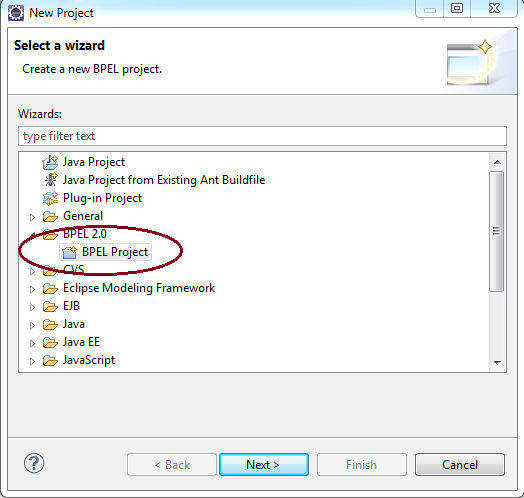
1. Create a BPEL Process. File -> New -> Project -> Other -> BPEL2.0 -> BPEL Project.


2. Click Next and Name the project as "HelloBPEL" & select the Target Run time as Apche ODE and select the default configuration. 


3. Project created and there is folder called bpelContent also created. No more files created.


4. Right click the folder bpelContent and New -> Other -> BPEL2.0 -> BPEL Process File.


5. Click Next, and Select "Create a  BPEL process from a template" and give process name "Hello" and Namespace as your wish - "http://hello.com" and click Next


6. Now Select the Synchronous BPEL process as the template and other details are fetched by the Eclipse . 

Actually the Service address have to be pointed to the address where the BPEL have to be deployed. For example - http://localhost:8080/ode/processes/Hello We can configure here, But we need to do it again. So let it be same. 

and click Next, and then Finish in the other window. 


7.  Now your bpelContent folder would have two files, one bpel file - Hello.bpel, and one WSDL file - HelloArtifacts.wsdl
8. Initial bpel process looks like following.

You can see the bpel process recieveInput and finally replyOutput. We need to include our logic inbetween those two construct. 

9. Now we need to implement the logic,  You can find a pallet in right side of the eclipse - where you can find all bpel construct. 


10. Our logic is get the Name - String input and give back greeting with Name - String as a out. 


Since our inputs & outputs are String & by default bpel set the input and output type as string we don't need to touch the HelloArtifacts.wsdl file. Else we need to change the type - or even we need to add more inputs or out puts.  If you double click the HelloArtifacts.wsdl file you will get the designer view of the WSDL. 


You can see the first diagram shows the input & output. If click either one arrow i  marked you get the specific input/output and the name of the input & types. Here the name - identifier of the input is input and type is string 

11. Now go back to the bpel file, We need t get the input and add(concat in programming world) some greeting - "Hello and GoodMorning" and send it to out put.  Our task is to assign the input to output with some concatination, we need to use Assign bpel construct. Delete the construct between the recieveInput and replyOutput &  Drag and drop Assign in. 

you can see some thing missing / error in the Assign - If anything not configured or incorrectly configured the bpel designer shows red cross in the construct. ( but please keep in mind the Eclipse bpel designer is buggy one - some times the errors it shows are not really errors)

12. Click on the Assign and go to properties and Details tab on the properties.  you can see there is nothing configured - Assigned. -> Click on the New button.


 13. By default it shows Variable selected for From and Variable selected for To ( If we just want to return the string we get , we can use this)


But Since we need to concat some string to input select Expressing (XPath) , the box bellow will be empty. We need to write the Expression there to concat the string with input. 


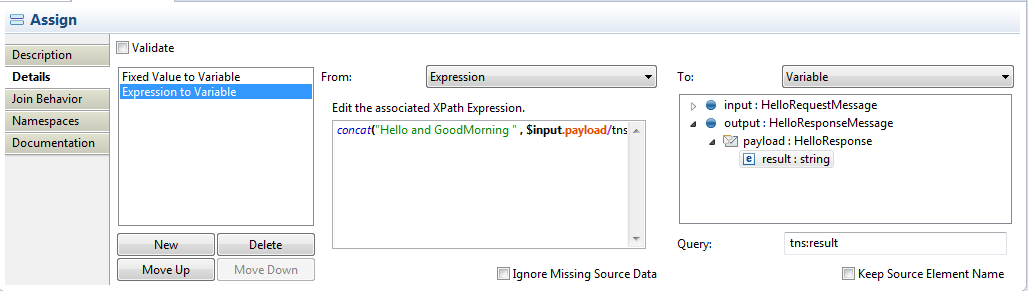
 14. Write the following Xpath Expression -{ concat("Hello and GoodMorning " , $input.payload/tns:input) }  and Select Output->Payload->result for the To: 

Once  you select the output and click on the bpel file , a window pop up and ask to click yes to initialize variable, click yes.


Your Assign Details property should be some thing like following. 


by this time there is another file added to the project folder - don't care about it. 


Now time to Deploy. 


15. We need to add a deployment descriptor to the folder. Right click the folder bpelContent and New -> Other -> BPEL2.0 -> BPEL Deploymenr Descriptor 


16. Click next and click finish. Following file will be added and opened. 

17. You can see under Associated Port and Related Service "none" selected. Click on "--none--" under Associated Port and select "HelloPort" - only one present there. and click on the "--none--" under the Related Service - It' will change the values according to your previous selection.


18. Now time to change the service address ( you can do it initially as well)

open the WSDL file in design view and click on the HelloService -> "HelloPort" and in the properties window, change the Address to  "http://localhost:8080/ode/processes/Hello" - if your local host- tomcat running on port 8080.


 19. Now click o the binding and in the Properties -> General tab click "Generate Binding Conte.." button, and check Over write Existing binding information and finish.

20. We are almost there , time to deploy. Right click on the ODE and Add/Remove project and select the HelloBPEL process and Add and finish. your process should be deployed and ready to test.

If you find any problem deploying in ODE through Eclipse. you  can do in a different way, if your Tomcat running as a windows service.

Go to 'http://localhost:8080/ode/" and click on Deployment Tab and upload the zip file that contain all the files under bpelContent folder.


21. Now time to test the BPEL process we deployed. Right click on the HellpArtifact.wsdl and -> WebServices-> Test with Webservice Explorer . (it's a way to test the web services in Eclipse) 

write the input to the input and click Go, You can see Hello and Good Moring + "the string you wrote"


Finally we done it, But it's a long post since it's first post on bpel , i tried to explain things in more details. But coming post won't be with much details on the stuff that are repeating again again.( Examples  1.Create Project 2. Add bpelProcess, 3. ,,,) 

I hope this is helpful to you. :)


0

Error ODE v1.x Server failed to start at localhost - Eclipse

Posted by Nantharupan on 1:31 AM in , , , ,
Problem 
I faced the problem of failing to start the ODE v1.x.(eclipse - Kepler relase) The error message either

1. Server port In Use 8080-Http :- Reason there might be some other service running on the port you are trying to start he ODE (for example 8080 in this case)

2. A Java Exception has occurred - see the following screen shot. or "Server Ode v1.x Server at localhost failed to start."


I am not going to explain the reason behind the error. i can say the server classpath missing one .jar. (tomcat-juli.jar)

solution

Double click the ODE server instance in eclipse - window opens and shows the overview of the server -> click the Open launch configuration (see the screen shot below)


A window pop up to edit the configuration, click the classpath tab , you can see under the user entries there is a jar called bootstrap.jar. 
but the problem is beacuse of the missing jar - "tomcat-juli.jar". So we need to add the manually, click on the Add External Jar and go to the %CATALINA%/bin folder (C:\Program Files\Apache Software Foundation\Tomcat 7.0\bin - in my case) and add the "tomcat-juli.jar"


once you added the "tomcat-juli.jar" click OK, and start the server. Restart the server. It should start without any problem. 


I found the answer from the following links

1. http://hichenwang.blogspot.gr/2012/09/problem-server-ode-v1x-server-at.html
2. http://www.eclipse.org/forums/index.php/m/760341/

I hope i solved your problem :)


0

Creating multiple instances of Tomcat 7 in Windows

Posted by Nantharupan on 12:40 AM in , , , , ,
I have been searching in the internet for create multiple instances of Tomcat 7.  I found a lot of resources , many of them asked to do some manual configurations such as copying th original Tomcat into another one and setting the "CATALINA_BASE" to the copied directory and edit the ports in conf/server.xml .


  1. 1. http://stackoverflow.com/questions/1794444/use-multiple-catalina-base-to-setup-tomcat-6-instances-on-windows
  2. 2. http://tomcat.apache.org/tomcat-7.0-doc/windows-service-howto.html#Multiple_Instances


Those answers apparently right. but some how i couldn't make it. finally i found a blog post, its' suggest to use the installation of the Tomcat for windows multiple times and give the different port numbers for the following. It's very easy and straight forward. 

Connector Port
Shutdown Port
AJP Port


Find the following screen shots for clear instructions. 


Hope it solved your problem very easily. :)

Original source of the Answer 

http://pe-kay.blogspot.gr/2011/08/creating-multiple-instances-in-tomcat-7.html


0

How to Link a PDF to a power point presentation

Posted by Nantharupan on 11:39 AM
You may encounter the issues of linking one PDF file to the power point presentation. Its pretty simple, Follow the steps :)

    1. Select the text or object you want to use to link to the PDF file
    2. On the Insert tab, in the Links group, click Hyperlink
    3. Under Link to, Click Existing File or Webpage
    4. Select the PDF file you want to link and then click Ok
    5. Verify the link

Reference  


0

Customize the Windows 7 folder icon :)

Posted by Nantharupan on 2:56 PM in ,
Step 1: Download .ico file or create a .ico file
Step 2 : Right clikc on the folder you want to change and click Properties 


Step 3 :  go to Customize tab and click Change icon
Step 4 : Click browse and give the location of your .ico file 

Out come will be some thing similar to following.  Cool :)


0

HTTP Methods

Posted by Nantharupan on 1:13 AM in ,
In the web world there are many methods used by HTTP.  Following are the main methods for HTTP/1.1 specification. Every methods implemented for a specific reason. Every method have pros and cons as well. we can catercorised these methods into two divisions ass follows

1. Safe methods - GET, HEAD
2. Idempotent Methods- DELETE, GET, PUT, HEAD, OPTION TRACE

Methods 


  1. GET
  2. POST
  3. HEAD
  4. PUT
  5. DELETE
  6. TRACE
  7. CONNECT
  8. OPTION


0

PhoneGap Android Splashscreen

Posted by Nantharupan on 8:04 PM in , ,
When we developing android application using Phone Gap we might come across a situation where we need to show a splash screen when application starts. 

We can't have any splash screen in our html pages.

We need to do that in our Eclipse Android project,

Steps to Show a splash Screen

1.  Add a config file in app/res/xml/ folder and name it as config.xml

2. Add the following line in the config file

<plugin name="SplashScreen" value="org.apache.cordova.SplashScreen"/>

3. Copy your splash screen into your res/drawable  folder

4.  Add following line of code into your MainActivity which extends DroidGap.

 super.setIntegerProperty("splashscreen", R.drawable.splash);
    super.loadUrl("file:///android_asset/www/Phone/index.html,5000);

The first line 'super.setIntegerProperty sets the image to be display as splashsceen, The second line is normal load method, but second parameter to set the timeout value for the splash screen


Reference 


0

Run your First Android Apps in Emulator

Posted by Nantharupan on 3:15 AM in , ,
To run Android app in the Emulator, First We need to create the Emulator

Steps To create Emulator

1. Launch the Android Virtual Device Manager (AVD Manager) 
         By clicking the Icon AVD Manager from the Tool bar 
       Or By Click Window- Android Virtual Device Manager


2. In the AVD Manager Panel Click New


3. Enter the Details Specialty Select the Device screen Size, as well as Target Version and select other properties if you want, for the moment don't do anything to others


4.  That's all Emulator created, Click the Emulator in the AVD Manager and click Start button


Now we have created the Emulator, Its matter of running the app in the Emulator now,

1. Click the Application and Right click and select the Run as and Select Android application 

Eclipse installs the app on your AVD and starts it.

Your First Android App is ready, It will look like follows in Emulator


Popular posts

Copyright © 2009 On the way All rights reserved. Theme by Laptop Geek. | Bloggerized by FalconHive.